You can send messages to customers or potential customers (not yet customers), and you can also apply filters. For example:
Potential customers: send an email to everyone who has shown interest in your services but has not yet become a customer, and whose last contact with you was more than 6 months ago.
Customers: send an email to customers who live in a specific area because you have just launched a pickup/delivery service for that area.
Customers: send an email to customers who have senior pets, because you are launching a senior pet nutrition product line.
... these are just a few examples, but with filters, you can easily select which customers you want to send to.
You can also filter by the customer's preferred language. In their profile,
you can set their preferred language, and you can configure
templates in different languages.
For example, to run a mailing campaign to potential customers, we can
configure the same template in Spanish, English and French.
We search for all potential customers with
French language preference and
select the French template.
You can do all this easily using the CRM, Marketing and Communication module. Keep reading to learn how:
In the Marketing module, under Settings
> Email templates > Your email templates
you can see all templates you have configured and
add new ones using the top button + Add
new.
Assign the name you want so you can identify it, for example "Christmas campaign for customers", and set the language.
The subject will be the email title shown to the recipient (the person you send it to).
On the right side you have a preview that updates in real time. If you modify the content or the subject, you will immediately see the changes. This way you know what the design/appearance will look like.
In the content, you can use template texts that
will be replaced with customer data, pet data, business
data, etc.
Check the template design section for more information.
In the Marketing module, under
Reports, select the criteria you want to use
for filtering or segmentation.
You can choose potential customers or existing customers by
location, by their pets, ...
For example, when you click Potentials, all potential
customers appear. Using the top Filters, you can
customize the list (those converted to customer, when
the last contact with that customer happened, customer language,
etc.). Select the filters you want
and click Search.
For example, you can search for potential customers added in the last 3 months, who have not yet been converted to customers, and who have had no contact for over 1 month, to send them an email.
Below the charts is the list. If you click the checkbox in the table header to send them an email, all are selected.
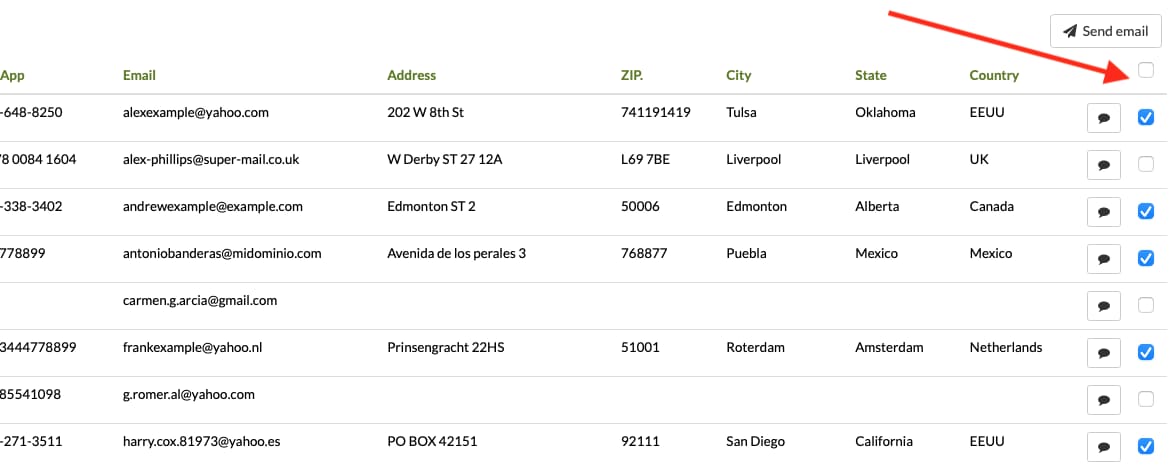
You can manually remove some to exclude them from the sending. Once all intended recipients are selected, click the button Send email
A pop-up window opens where you can choose:
Language
Template
If you want, you can select one of your configured
templates and the Subject and Content are filled in
automatically.
You can modify anything you want.
If you don't want to configure templates, you can write any Subject and Content you want.
On the right side there is a preview that updates in real time. If you modify the content or subject, you will see the changes immediately. This way you'll know what the design/appearance will look like.
In the content, you can use template texts
that will be
replaced with customer, pet,
business data, etc.
See the template design section
for more
information.
If you select the option to send yourself a copy, you will receive a copy of each email sent. That means if you send 200 emails, those 200 emails will be sent to their corresponding recipients, and you will receive copies of those 200 emails in your inbox, so in total 400 emails will be sent.
Before sending, the available email sending credit is
checked. If you can send
100 emails per month and you select 200 customers, the sending
cannot be completed because it exceeds your limit.
If you need to send more emails, you can increase your credit
before sending.
In the Marketing module, under CRM > Email
sendings you can see the sent email log,
and by clicking one you can view the details.
You can send emails directly from the software, and in this option Marketing
> CRM > Email sendings you can check the full record.
You can see all of them or filter by status:
Queued: About to be sent. If you launched a bulk email action, they will be sent progressively, and those with "queued" status are waiting to be sent.
Sent: Already sent.
Scheduled: Set to be sent at the selected date/time.
Cancelled: You cancelled the sending, so they will not be sent.
Error: They could not be sent because an error occurred.
When sending the reminder to the customer, the software checks the available email credit. If no credit is available, the reminder will not be sent, and the status will show Error with the reason "No credit available to send more emails".
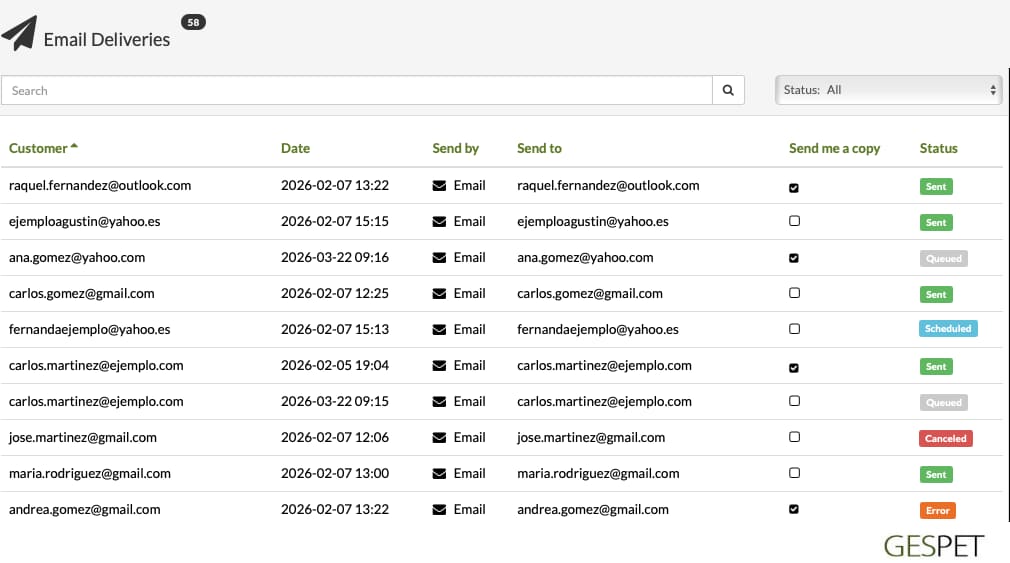
By clicking an email, you can see more sending details.
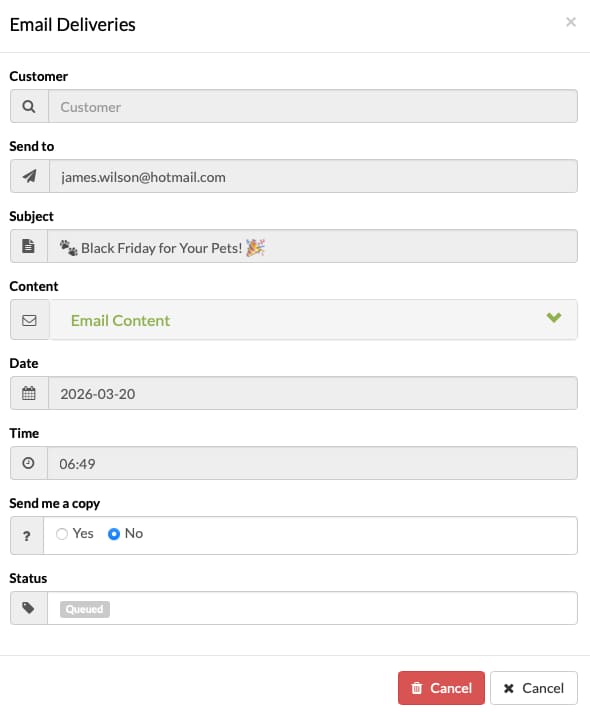
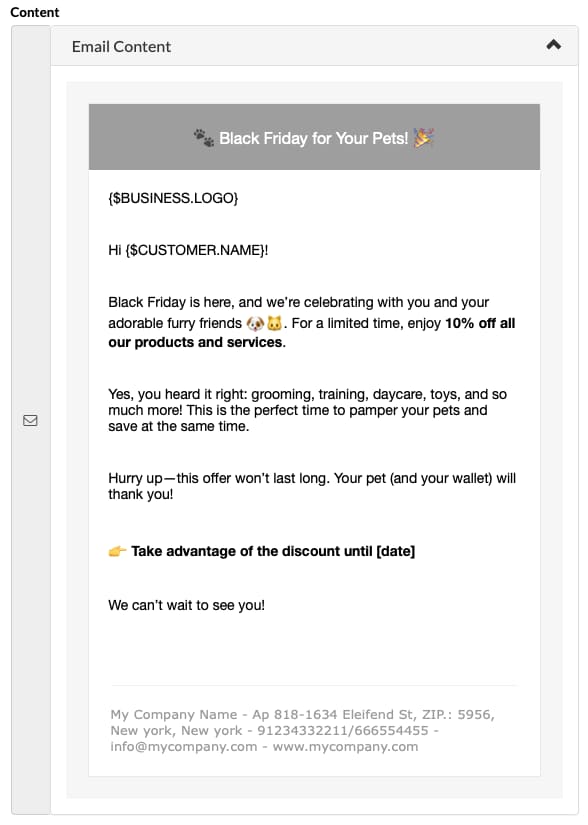
And by clicking Email content, you can see that email's content.
TAGS:
send grooming appointment reminder | send dog grooming appointment reminder | send dog boarding reminder | send pet hotel reminder | send training reminder | send pet training reminder | send trainer reminder | send puppy reminder | send dog breeder reminder | send dog daycare reminder | send pet daycare reminder | send pet reminders